iFrame embedding
Written By Jozef
Last updated 7 months ago
Creating an embedding
To embed the interview into your platform, you need to create an embedding record. There are two ways to do this.
Create from the admin portal
Navigate to https://app.jobmojito.com/integrations and choose the iFrame embedding tab. Here, you can manage all created interview embeddings.
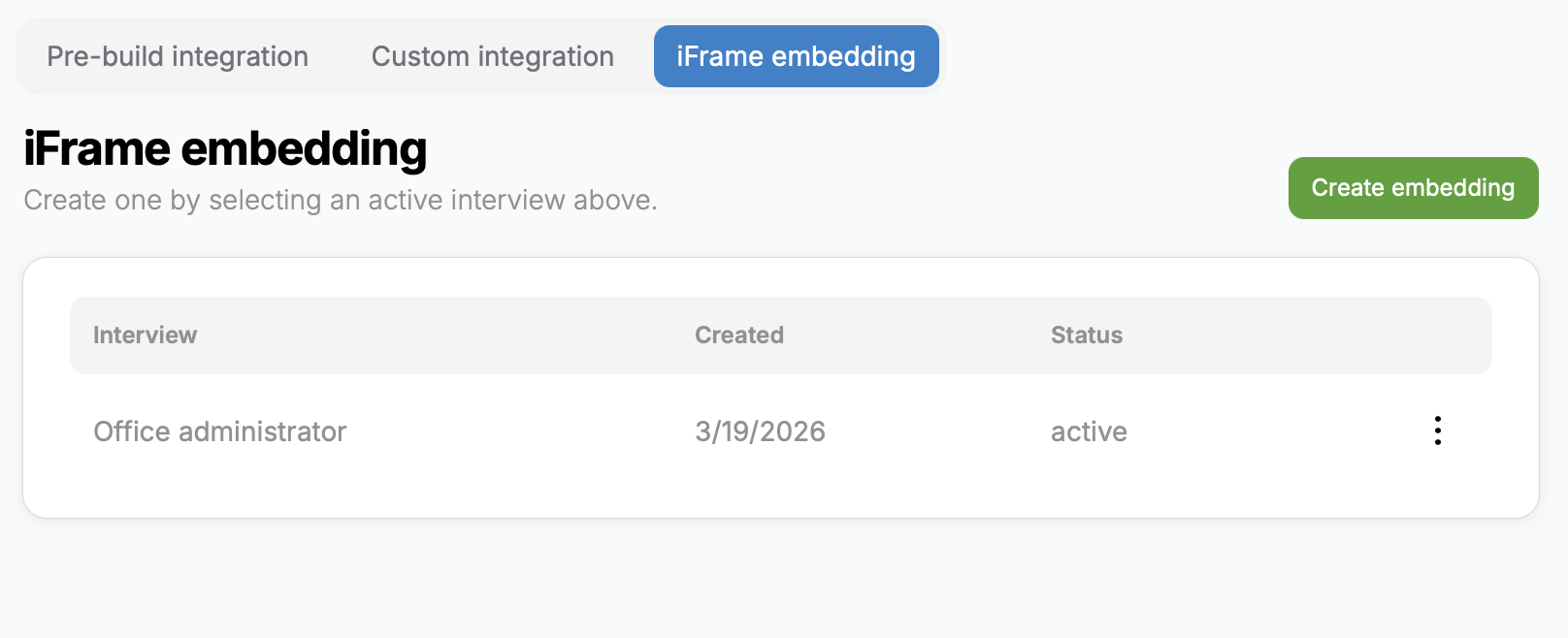
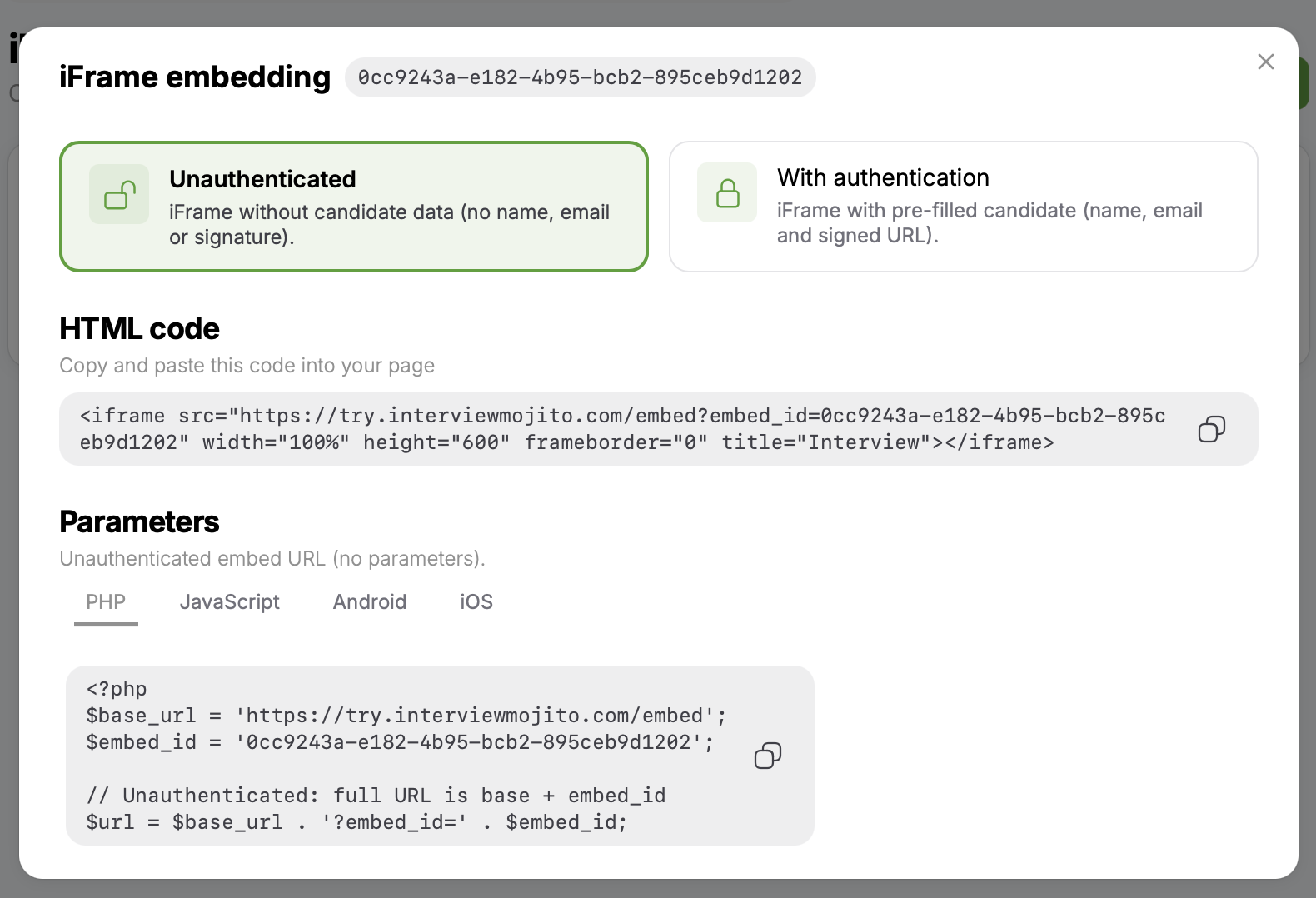
You can open the embedding details, including copy-and-paste sample implementation code for your preferred language.
Create via API
All interview creation and status endpoints have an is_embedded parameter. Once this parameter is set to true, an embedding configuration will be created, and all necessary information, such as embed_id and embed_signing_key, will be provided in the response.
Creating a link (unauthorized)
If you want to embed an unauthorized interview on your platform, add an iframe with a link in the following format:
https://try.interviewmojito.com/embed?embed_id=[embed_id]
Note that embed_id is different from interview_id and position_id. The embed_id is available in the Integrations tab or in the API response.
<iframe src="https://try.interviewmojito.com/embed?embed_id=0cc9243a-e182-4b95-bcb2-895ceb9d1202" width="100%" height="600" frameborder="0" title="Interview"></iframe>
User flow:
The user will see the details of the position.
The user will be asked to authenticate using single sign-on (SSO) or email and an OTP code.
The user will take the interview.
The user will see the result screen. You can turn off the result screen by changing
result_viewvia the API or in the admin portal tonone.After submission, the user will see a success page.
Creating a link (authenticated)
If your user is already authenticated in your platform, you can create a link that includes the user's name, email, and signature.
Our platform will automatically log in the user and skip the authentication step completely. The first screen the user will see will be the start of the interview.
User flow:
The user will take the interview.
The user will see the result screen. You can turn off the result screen by changing
result_viewvia the API or in the admin portal tonone.After submission, the user will see a success page.
How to create parameters:
name:base64EncodeUtf8(name)email:base64EncodeUtf8(email)signature:
crypto .createHmac('sha256', signingKey) .update(embed_id + name + email, 'utf8') .digest('hex');Sample link:
https://try.interviewmojito.com/embed?embed_id=0cc9243a-e182-4b95-bcb2-895ceb9d1202&name=TXIuIEJyb3duIGRzYWRhc2RhIGRz&email=am96b0Bqb3pvLnNr&signature=95507ef1a2044f04434fefe7d860aacfe61bba2e6e0eb79fa2edcd654777fc79onMessage events from the iframe
The iframe sends messages to the parent window, so you can take action in your application based on different events. See the JavaScript reference here: https://developer.mozilla.org/en-US/docs/Web/API/Window/postMessage
loaded: The user has loaded the interview page and is ready to start the interview.
result: The user has completed the interview and is currently on the result screen.
success: The user has completed and submitted the interview.
Was this helpful?
Still need help? Ask the team